How to Set Up and Verify Your Google Business Profile (2026)
A step-by-step guide to creating a Google Business Profile, getting through video verification on the first try, and avoiding the setup mistakes that get profiles rejected or suspended, from Google's own rules.
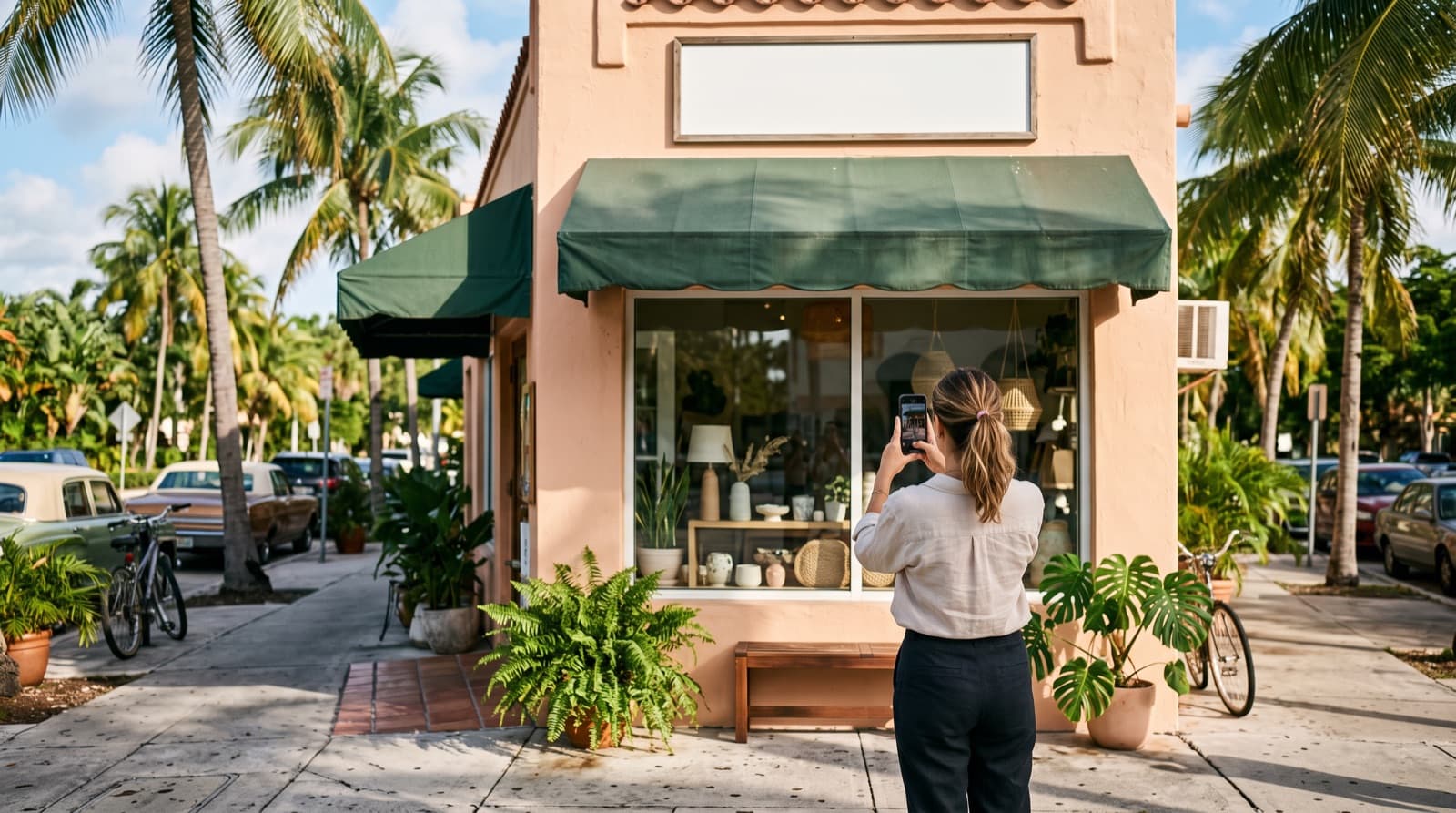
Your Google Business Profile is the box that shows up on Google Maps and on the right side of a search when someone looks you up or searches for what you do nearby. It is free, and it is often the first thing a customer sees before they ever reach your website.
Setting one up takes about fifteen minutes. Getting it verified is where most owners get stuck, because Google now leans heavily on a phone video and rejects a lot of first attempts. This guide walks through both, using Google's own help pages as the source for every rule. Each link says what it is, and all of them were checked on November 12, 2026.
The short answer
Sign in with a Google Account, go to business.google.com/create, enter your business name and one specific category, say whether customers come to you, then add your address or service area, phone and website. Google then offers you one or more ways to verify, most often a short video recorded live on your phone in one unbroken take. Review takes up to 5 business days. Your profile stays hidden from customers until it is verified.
Before you start: get these ready
Google's Business Profile guidelines are strict about the details below, and changing them after you submit can send you back through verification. Decide them first.
- Your real business name, exactly as it appears on your sign, truck or paperwork. No added keywords, towns or slogans.
- A Google Account you will keep. Google recommends one on your business email domain. Whoever owns this account owns the profile, so do not let a former employee or a vendor create it in their own account.
- Your address, or the decision to hide it. More on this below.
- A phone number that rings at this business, under your direct control. Google says no premium numbers and no numbers that forward callers somewhere else.
- Your website address, pointing at this business, not a Facebook page or a link that redirects.
- Your regular customer-facing hours.
Step 1: Create the profile
Google's own guide to adding your business lays out the steps. In plain terms:
- Sign in to the Google Account you chose, then open business.google.com/create.
- Type your business name. If Google suggests a matching business and says someone already verified it, request ownership instead of creating a second profile. Duplicates can get an account suspended.
- Pick your primary category (more on choosing it below), then select Next.
- Answer whether you have a location customers can visit.
- Add your address, your service area, or both.
- Add your phone number and website.
- Select Finish, then choose a verification option. You can verify later, but the profile is not shown to customers until you do.
Step 2: Storefront, service area, or both
This is the choice that trips up the most local businesses, so it is worth getting right.
Storefront
You have a staffed location customers visit during your listed hours: a salon in Delray Beach, a restaurant in Lake Worth Beach, a dental office in Wellington. Show your address.
Service-area business
You go to your customers and do not receive them at your address: a plumber, a pool service, a mobile detailer, a cleaner. Google requires you to hide your address and list the areas you serve instead. This applies to home-based businesses too. You can add up to 20 service areas, and Google says the whole area should generally not reach beyond about 2 hours of driving from your base.
For a business based in Jupiter that covers the county, that might be Jupiter, Palm Beach Gardens, West Palm Beach, Wellington, Lake Worth Beach, Boynton Beach, Delray Beach and Boca Raton, or simply Palm Beach County.
Hybrid
You have a staffed storefront and also travel to customers, like an HVAC company with a showroom. Show the address and add a service area.
What does not qualify
Google's guidelines say P.O. boxes, remote mailboxes and virtual offices are not eligible as an address. A co-working space only counts if it has your signage, staff there, and customers received during your hours.
Step 3: Pick the right category
Your primary category tells Google what you are, and it is one of the strongest signals for which searches you show up in. Google's rule is that a category should complete the sentence "this business is a," not "this business has a."
- Use as few categories as you can, each as specific as you can. "Personal injury attorney" beats "Lawyer" if that is what you do.
- Do not add categories for services or amenities. A restaurant with Wi-Fi is not an "Internet cafe."
- Add secondary categories only for things your business genuinely is.
Not sure which one fits? Search for your service in your town and look at the categories on the top three businesses in the map. Then choose the most accurate one for you, not the most popular one.
Step 4: Verify your business
Google decides which methods you are offered, based on your business type, location and other factors, and you cannot change them. According to Google's verification help page, the options can include:
- Video recording: recorded live on your phone through the Business Profile. Google recommends it when you are eligible.
- Live video call with a Google support representative, during your business hours, where offered.
- Phone or text: a code sent to your business number. Automated phone menus cannot receive it.
- Email: a code sent to an address you can access.
- Postcard: a 5-digit code mailed to your address, not offered to every business.
Google also says verification can be instant in some cases, for example if you have already verified your website in Google Search Console.
How to pass video verification on the first try
Google's page on verifying with a video recording sets out the rules. Here they are, with what they mean in practice.
The recording rules
- At least 30 seconds long.
- One continuous take, unedited, with no breaks. Do not stop and restart.
- Recorded live from your phone in the "Get verified" flow on your Business Profile. A video filmed earlier and uploaded will not be accepted.
Plan your route before you press record, and walk it once without filming.
What a storefront should show
- Where you are: a street sign, the building number, a neighboring business or a landmark that matches your address on Google Maps.
- That the business exists: your storefront with the business name on a permanent sign, wall or window. The name must match your profile.
- That you run it: something only staff can reach, such as the register, the kitchen, a storage room or the point-of-sale system.
What a service-area business should show
- Where you operate from: street signs or landmarks near your business address. If you work from home, show signs and landmarks in your immediate neighborhood. Avoid empty lots or anything unmarked.
- That the business exists: your tools, equipment, products, workspace, business cards or branded uniform.
- That you run it: doing the work, or unlocking business-only things like your branded van. Google also accepts a business permit, invoice or utility bill that matches your profile name.
What not to show
- Bank account, tax or ID numbers
- Private information about you or anyone else
- Other people's faces
Film in daylight if you can, keep the camera steady, and say nothing you would not want a stranger to hear. Then submit and wait.
If the video is rejected
Google tells you why, with reasons like the business name not being visible on the storefront, no nearby area shown, or no proof you are authorized to run the business. Open your profile, tap Review issues, and record a new video that includes everything from the first one plus what was missing. If you cannot meet the requirements, try another method if your profile offers one.
While you wait, and if you got a postcard
Review takes up to 5 business days, occasionally longer. If you chose a postcard, Google says most codes arrive within 14 days and expire after 30. Two things to avoid while it is in the mail:
- Do not edit your business name, address or category. The code will stop working.
- Do not request a new code. It cancels the first one and slows everything down.
The mistakes that get profiles rejected or suspended
- Keywords in the business name. "Smith Plumbing" is fine. "Smith Plumbing Boca Raton 24/7 Emergency" breaks Google's name rules, even if a competitor gets away with it for a while.
- Showing a home address you do not receive customers at. Service-area businesses must hide it.
- A virtual office or mailbox as your address.
- Two profiles for the same business. Google asks for one profile per location and warns that duplicates can lead to suspension.
- A call-tracking or forwarding number as the main number. Google's guidelines ask for a number that connects directly to the location.
- Editing core details right after verifying. Changing your name, address or category can trigger a new round of verification. Get them right before you submit.
After verification: fill it in completely
A verified profile with nothing on it does little. Once you are in:
- Add photos: the outside of your shop or your vehicle, your team at work (faces only with their permission), and real jobs. Skip stock photos.
- Write the description: what you do, who you serve and the towns you cover, in plain language. Google does not allow links in it.
- List your services, with prices where you are comfortable sharing them.
- Set special hours for holidays and storm closures, so nobody drives over to a locked door.
- Ask every happy customer for a review, and reply to every review, good or bad.
- Post updates when you have something worth saying: a seasonal offer, a new service, a job you are proud of.
- Say so if you serve customers in Spanish, in your description and in your posts, so Spanish-speaking customers know they can call.
Features that have changed recently
A few things older guides still recommend no longer work the same way:
- Chat is gone. Google's help page on the change confirms Business Profile chat was removed on July 31, 2024, so customers can no longer message you through the profile. Call history reports went at the same time.
- Public Q&A has been replaced. As Search Engine Roundtable reported on December 15, 2025, Google Maps now shows an AI "Ask" button instead of the public Q&A section. It answers from your profile and your reviews, which is one more reason to keep both complete and accurate.
Frequently asked questions
Is a Google Business Profile free?
Yes. Creating, verifying and managing a profile costs nothing. What businesses pay for is someone else's time to set it up, keep it current and handle reviews.
How long does Google Business Profile verification take?
Google says reviews take up to 5 business days, occasionally longer. Postcards usually arrive within 14 days. Phone, text and email codes, when offered, can be done in minutes.
Can I set up a Google Business Profile without a storefront?
Yes. Choose a service-area business during setup, hide your address and list up to 20 areas you serve. You still need a real address behind the scenes for verification, and Google does not accept P.O. boxes or virtual offices.
Why can't I choose a different verification method?
Google picks the methods it shows you based on your business type and location, and you cannot change them. If the one offered does not work for you, complete it as well as you can, and contact Google Business Profile support if you get stuck.
Should my web designer or marketing agency own my profile?
No. The profile should be in a Google Account you own, with the agency added as a manager. That way you keep the profile, its reviews and its history if you ever change vendors.
Do I need a website if I have a Google Business Profile?
The profile gets you found. A website is where people go to decide, and Google's guidelines ask that the website on your profile represents your business rather than a social media page. If you do not have one yet, it is worth having both.
Want it done for you?
Every website we build includes Google Business Profile setup, in your name with us added as managers, so you show up on Google Maps from launch day. Our starter-design sites are $750 in month 1, then $49 a month for hosting, SSL, backups and small edits. Browse the starter designs, or tell us about your business if you already have a site and want help ranking in the map. Local SEO on its own is $400 a month, month to month, and all of our prices are on the pricing page.
About the Author: Ivey Digital builds websites and runs local marketing for Palm Beach County businesses. Our prices are published on our pricing page.
Tags
Related services



Would you rather we just did it?
Reading is the cheap version. Tell us what you sell and where, and we will come back with an honest answer about where to start.